Reference
Complex arguments
Some of the function arguments expect certain types of values that can't be shortly described. Therefore, they are referenced in the documentation below by their unique names, whereas simple arguments have an in-line description. The description for such complex arguments is provided below.
Index
is a list of values in square brackets, separated by commas or colons. Each value can be either a number or a string. Colons are used to specify a range of values, e.g. [1:4] is equivalent to [1, 2, 3, 4]. For string values it's also possible to specify an offset: ["Total"(+2)]. The offset value can be either positive (+2) or negative (-1), which allows us to reference a row/column that goes after or before the anchor "Total".
Axis
defines whether to apply an operation on rows or columns. Use 0 or "rows" for rows and 1 or "columns" to apply to columns.
DataFrame
is a table of values. All expressions result in a dataframe. So when you see that the expected argument type is DataFrame, it means that the argument must be an expression. An expression can be as simple as a single SELECT or it can be a complex chain of operations.
In our examples a data frame can be represented as a 2D array. A 3x3 dataframe would look like this:
[[x0, x1, x2], [x3, x4, x5], [x6, x7, x8]].
Condition
primarily used for FILTER. It expects a short comparison expression that has an arbitrary variable name on the left, a comparator in the middle (>, <, ==, <=, >=), and a string/number on the right. Something like this: x > 25.
Operations
Here is a list of all available operations that can be used to select, transform and join dataframes.
SELECT
Select data from an available data source.
Parameters:
| Name | Type | Description | Default |
|---|---|---|---|
file |
int | str |
the number or the name of the attached data file. | 1 |
table |
int | str |
the number or the name of the table in the file. | 1 |
sheet |
int |
the number of the sheet in the file | 1 |
rows |
Index |
table rows to be selected. | [:] |
columns |
Index |
table columns to be selected. | [:] |
Raises:
| Type | Description |
|---|---|
IndexError |
when the specified rows/columns aren't present in the dataframe. |
Usage
SELECT(file=1, sheet=1, table=2, rows=[1], columns=[2])
S(f=1, s=1, t=2, r=[1], c=[2])
Remarks
The table argument works with table names only if the table name location was previously
specfied in the UPLOAD query. Otherwise, it won't know how to identify a table by its name
and throw an error.
The sheet argument will be able to pull from sheets that have been identified in the UPLOAD query.
SELECT only cares about the sheets that have been identified in UPLOAD and not any unchosen sheets from the oringinal data.
For example, my UPLOAD query could be:
UPLOAD (name="data", sheet=[2, 5, 7])
This would upload the 2nd, 5th and 7th sheets from my data file.
However, the sheet argument in a SELECT query for this data could only be 1, 2 or 3, which would grab the 2nd, 5th or 7th sheet respectively.
An argument for columns or rows is an array (square brackets) of individual values
(literals or variables) or ranges. Values must be separated by commas. For instance:
[f=1, t="Total", r=[4:8], c=[1, 5, 7]. Index values are called indexers.
A range may have up to 3 explicit parameters: start, stop and step. The last parameter allows us to step over every 2nd/3rd/etc value in the range.
Examples:
1. : - full range;
2. 2: - from the 2nd to the end;
3. "Total":-2 - from "Total" to the end but 2;
4. 1:10:2 - odd ones from 1 to 10;
5. -1::-1 - full range in the reversed order;
Indexing with string literals has additional features: wildcard and relative offset.
Wildcard allows to reference cells with just parts of their full values. For instance,
instead of I am a disgustingly long string to type it's possible to just use
*disgusting* instead. The first occurence that matches the pattern will be used.
Relative offset allows to reference rows/columns that sit next to some "anchors",
i.e. rows/columns that are easy for us to find and use. Example: "Base"(+1), "Mean"(-2).
The rows and columns arguments not only dictate which rows/columns
to include in the data set, but also in what order. Thus,
columns=[3, 2, 1] gives columns 1, 2, 3 in the reversed order.
Example
SELECT (f=1, t=1, rows=[3:8], columns=["Total":"Female"]) >> (1, 1)
Total and the column named Female.
SELECT (rows=[3:8], columns=["Total*"]) >> (1, 1)
Total.
SELECT (rows=[3:8], columns=["Total*"(+1)]) >> (1, 1)
Total.
SORT_BY
Parameters:
| Name | Type | Description | Default |
|---|---|---|---|
by |
Index |
which rows/columns of the dataframe should be sorted. This can be an index number or text reference from the row/column. | required |
axis |
Axis |
sort row-wise (0) or column-wise (1) | 1 |
asc |
bool |
ascending order if the argument is True else descending. |
False |
na_position |
str |
how to position non-numeric values: first or last. |
first |
Usage
SORT_BY(by=[1], axis=1, asc=False, na_position="last")
SB ([1], 1, False, "last")
Example
In the following example, we will be sorting our data in descending order based on the second column (the first column of data).
Map the following query to the input template, which will grab our selected data and sort it:
SELECT (f=1, t=1, r=[5:9], c=[1:4]) -> SORT_BY (by=[2], axis="rows", asc=False) >> (2, 1)
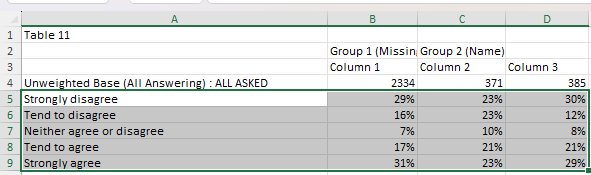
Download the slide and you should get the following result:
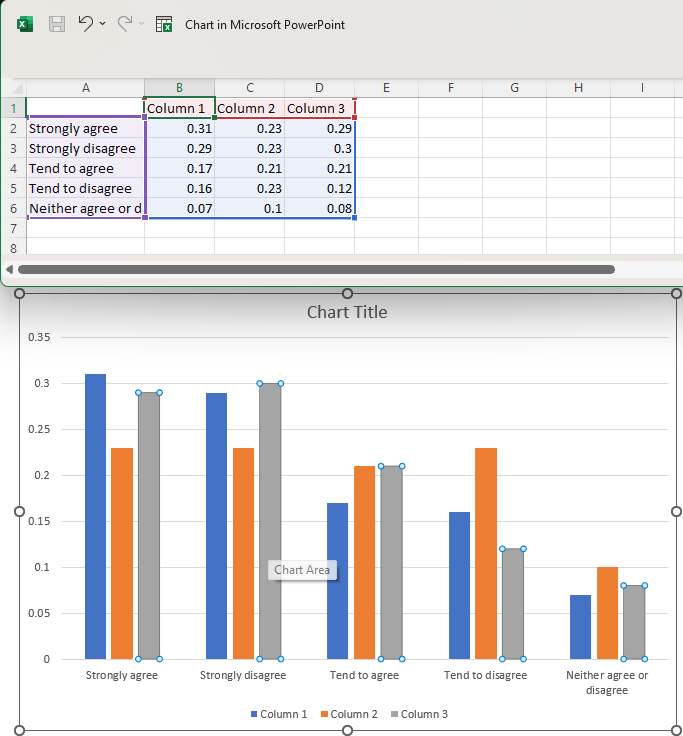
Here we can see that Column 1 has been sorted in descending order, and the other columns have been moved alongside it.
FILTER
Filters out columns or rows from a specified range if the their values don't meet the condition.
Parameters:
| Name | Type | Description | Default |
|---|---|---|---|
condition |
Condition |
if a value meets the condition. the corresponding row/column will be filtered out. | required |
axis |
Axis |
filter on rows (0) or columns (1). | 1 |
Raises:
| Type | Description |
|---|---|
TypeError |
when comparator >, >=, < or <= is used on non-numerical values. |
Example
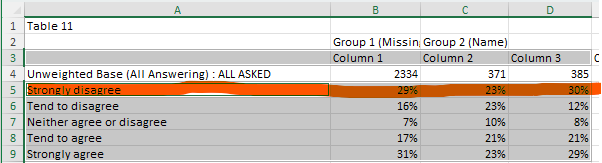
In the following example, we will be removing any row that contains the text "Strongly disagree" from our data selection.
Map the following query to the input template, which grabs our selected data and applies the filter transformation.
SELECT (f=1, t=1, r=[3, 5:9], c=[1:4]) -> FILTER (condition = x == "Strongly disagree", axis="rows") >> (1, 1)
Download the slide and you should get the following result:
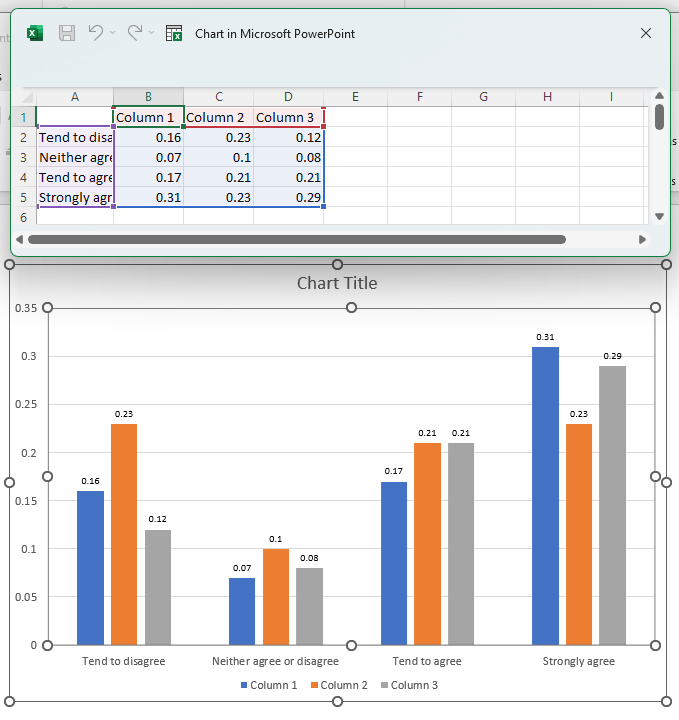
The "Strongly disagree" row from the data file has been filtered out.
PIN
Pins a subset of rows/columns to the top or bottom.
Parameters:
| Name | Type | Description | Default |
|---|---|---|---|
index |
Index |
which rows/columns to move. | required |
axis |
Axis |
pin rows (0) or columns (1). | 0 |
how |
"top" | "bottom" |
pin to top or bottom | "top" |
Raises:
| Type | Description |
|---|---|
IndexError |
when index is not present in the dataframe. |
Usage
PIN(index=[1], axis=0, how="top")
PN([1])
Example
In the following example, we will be pinning the "Neither agree or disagree" row to the top of the data selection.
Map the following query to the input template, which will grab our selected data and move the specified row to the top.
SELECT (f=1, t=1, r=[5:9], c=[1:4]) -> PIN (index=["Neither agree or disagree"], axis="rows", how="top") >> (2, 1)
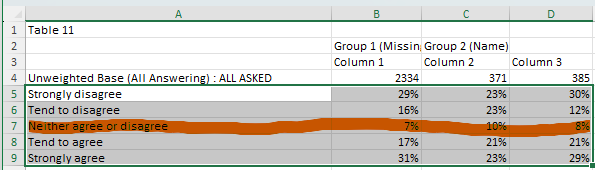
Download the slide and you should get the following result:
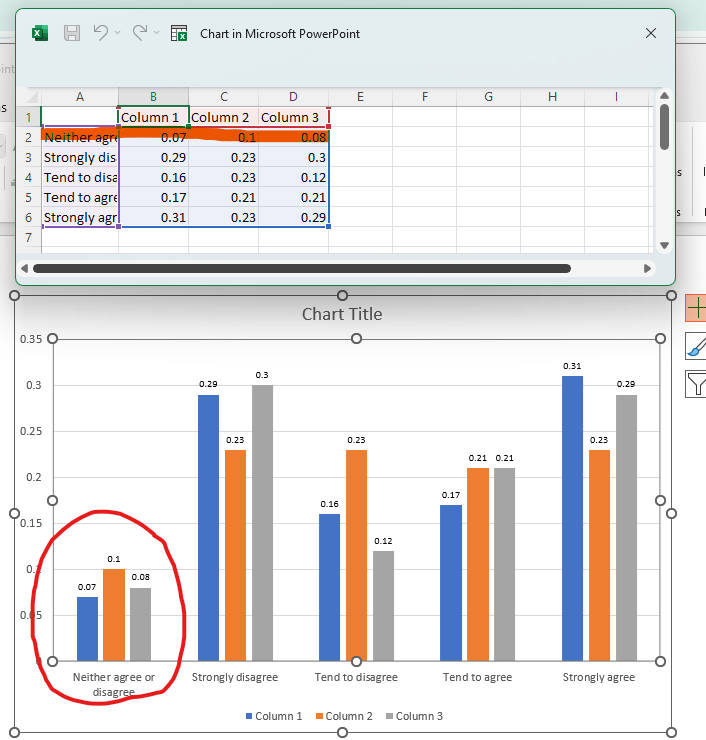
Here we can see that the "Neither agree or disagree" row has been pinned to the top of the data selection.
TRIM
Removes all but a specified subset of rows/columns.
Parameters:
| Name | Type | Description | Default |
|---|---|---|---|
index |
Index |
which rows/columns to preserve. | required |
axis |
Axis |
apply to rows (0) or columns (1). | 0 |
Raises:
| Type | Description |
|---|---|
IndexError |
when index is not present in the dataframe. |
Usage
Reduce dataframe to specific rows/columns
TRIM([1, 3, 4], "rows")
# also works with names
TRIM(["Column 1":"Column 5"], "columns")
Example
In the following example, we will be trimming the data so that only the first four rows remain.
Map the following query to the input template. This contains the full selection of data as well as the TRIM transformation to keep just the first 4 rows (including the column labels).
SELECT (f=1, t=1, r=[3, 5:9], c=[1:4]) -> TRIM (index=[1:4], axis="rows") >> (1, 1)
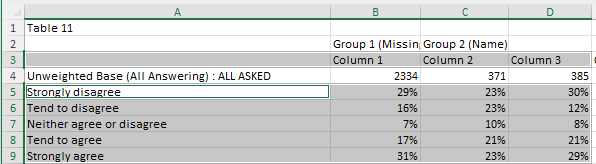
Download the slide and you should get the following result:
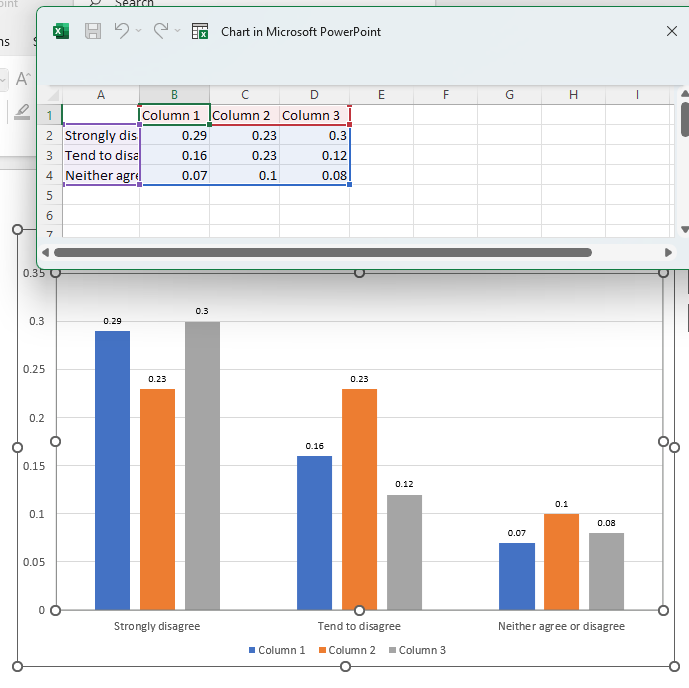
Here we can see that only first four rows of data are left from our original selection.
SUM
Gives the sum of the provided values.
Parameters:
| Name | Type | Description | Default |
|---|---|---|---|
axis |
Axis |
sum values over the axis. If not provided (default), returns the total of all values. | None |
numeric |
boolean |
treat all values as numeric, otherwise raises an error when a non-numeric value occurs | True |
Usage
# maps a single value to the specified cell
SUM(SELECT(...)) >> (2, 2)
# `axis=1` will give us a column that contains the sums of values in each row
SUM(
    SELECT(...),
    axis="rows"
) >> (2, 2)
Example
Consider the following data source:
                                  0         1         2         3         4         5         6
1                                    Column 1  Column 2  Column 3  Column 4  Column 5  Column 6
2                             Row 1      8.57     43.85     14.28     66.72     43.67     17.64
3                             Row 2      6.25     62.11     87.85     92.13     54.42     55.83
4                             Row 3       8.5     26.15     22.12     55.24      91.9     54.68
5                             Row 4     40.16     26.83      0.27     71.47     14.35     97.91
SUM(SELECT(f=1, t=1, r=[1:5], c=[3, 4])) >> (1, 1)
        0
0  283.46
axis argument is provided:
SUM(SELECT(f=1, t=1, r=[1:5], c=[3, 4]), axis="rows") >> (1, 1)
axis value:
        0
0    0.00
1   58.13
2  149.96
3   48.27
4   27.10
0 because we have column names in that row.
This behavior can be disabled by setting the numeric argument to False. In which case, an error
will be thrown instead.
TRANSPOSE
Switches rows and columns.
Usage
It takes no arguments, so it's quite straightforward:
TRANSPOSE()
T()
Example
In the following example, we will perform a transpose action on our data selection.
Map the following query to the input template:
SELECT (f=1, t=1, r=[3, 5:9], c=[1:4]) -> TRANSPOSE() >> (1, 1)
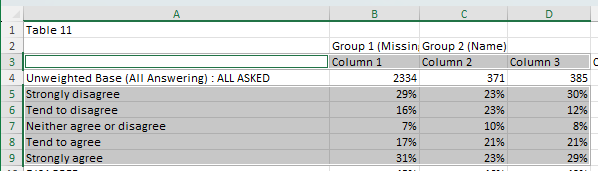
Download the slide and you should get the following result:
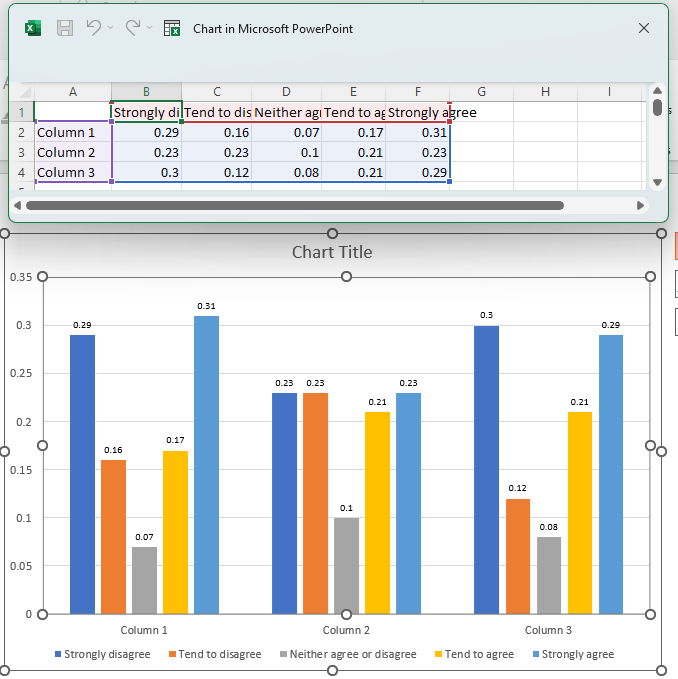
Here you can see that the columns and rows have been swapped.
FORK
Substitutes with value A if condition is true else with value B.
Parameters:
| Name | Type | Description | Default |
|---|---|---|---|
condition |
Condition |
a comparison expression. | required |
x |
DataFrame |
yield value when condition is met. | required |
y |
DataFrame |
yield value when condition is not met. | "" |
Raises:
| Type | Description |
|---|---|
TypeError |
when comparator >, >=, < or <= is used on non-numerical values. |
Usage
FORK(x > 100, "big", "small")
FK(x > 100, "big", "small")
Example
In the following example, we will be replace all the values in the selected range with "big" if they are greater than 0.20 and "small" if they are less than 0.20.
Map the following query to the input template, which will select our data range and then apply our condition to it. This will check whether each value in our selection meets the condition, and apply the first option "big" if it does, or the second option "small" if it doesn't.
SELECT (f=1, t=1, r=[5:9], c=[2:4]) -> FORK (x > 0.20, "big", "small") >> (2, 2)
Download the slide and you should get the following result:
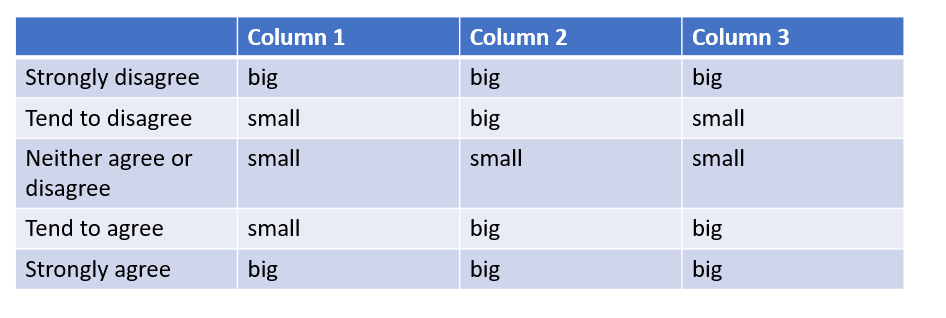
Here we can see all the number values have been replaced depending on whether or not they met the condition.
REPLACE
Finds and replaces values from the contextual data set with values from another data set.
Parameters:
| Name | Type | Description | Default |
|---|---|---|---|
keys |
DataFrame |
a dataset that contains values that need to be replaced. | required |
values |
DataFrame |
a dataset that contains replace values. | required |
Usage
REPLACE(
    SELECT (1, 1, [3:5], [1]),
    SELECT (2, 1, [1:3], [1])
)
Example
In the following example, we will be replacing the names of two row labels.
Map the following query to the input template, which will grab our selected data and target the "Strongly disagree" and "Strongly agree" labels with the REPLACE transformation.
SELECT (f=1, t=1, r=[3, 5:9], c=[1:4]) -> REPLACE (["Strongly disagree", "Strongly agree"], ["Very negative", "Very positive"]) >> (1, 1)
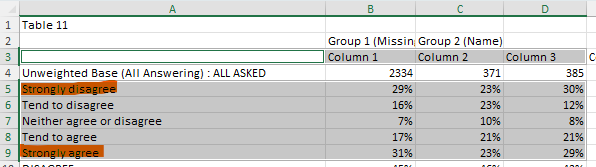
Download the slide and you should get the following result:
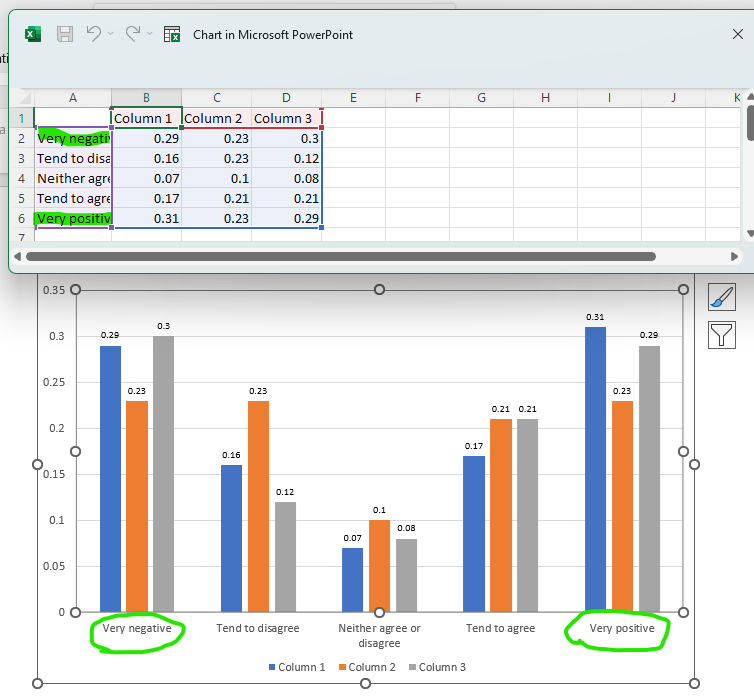
Here we can see that the two targeted rows have been renamed to "Very negative" and "Very positive" respectively.
FORMAT
Formats values to strings with optional prefix and suffix
Parameters:
| Name | Type | Description | Default |
|---|---|---|---|
prefix |
str |
prepend specified characters to the value. | "" |
suffix |
str |
append specified characters to the value. | "" |
code |
str |
Excel number format code. | "" |
rows |
Index |
apply formatting to specific rows only. | [:] |
columns |
Index |
apply formatting to specific columns only. | [:] |
Raises:
| Type | Description |
|---|---|
ValueError |
when applying formatting code to a value that cannot be converted to a number. |
Usage
FORMAT(prefix="=", suffix="%", rows=[1:5], columns=[2:4])
FT(px="=", sx="%", r=[1:5], c=[2:4])
Remarks
This transformation can also be used with no arguments to change data type to string.
The following format codes are supported:
#,###
#,
0
0.0
0.00
0.000
0,0
0,00
0,000
0%
0.0%
0.00%
0.000%
0,0%
0,00%
0,000%
Example
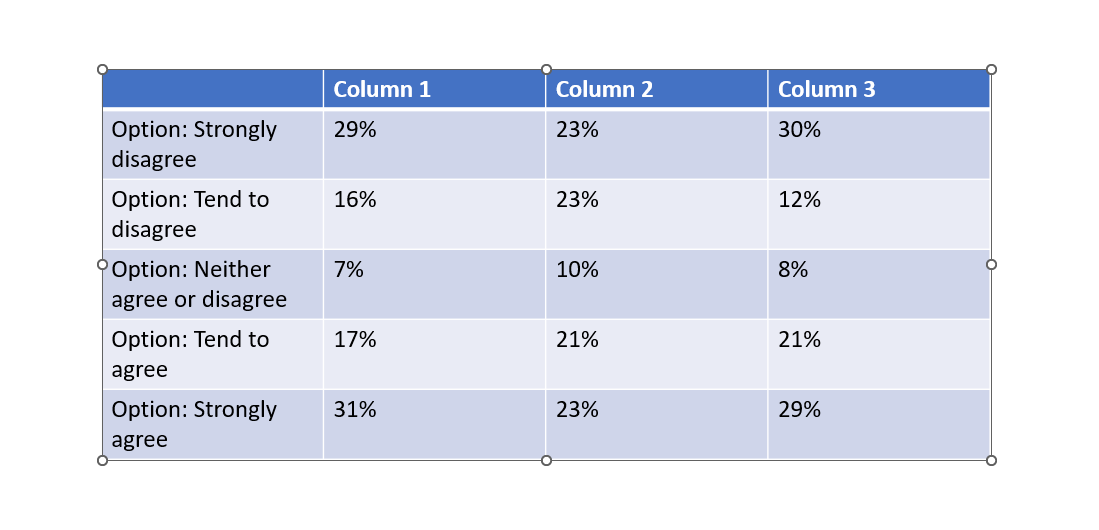
In the following example, we'll be adding the prefix "Option: " to each of the row labels, and reformatting the values to percentages by adding a "%" suffix to them.
Map the following query to the template. This is composed of two parts, one to add the row labels and the other the data values. Each on has its own FORMAT transformation to apply the prefix and suffic respectively. For the 2nd query, we are also adding a multiplication and ROUND to better format the values. This is not part of the FORMAT transformation.
SELECT (f=1, t=1, r=[5:9], c=[1]) -> FORMAT (prefix="Option: ") >> (2, 1)
SELECT (f=1, t=1, r=[5:9], c=[2:4]) *100 -> ROUND() -> FORMAT (suffix="%") >> (2, 2)
Download the slide and you should get the following result:
ROUND
Rounds values to a specified number of digits.
Parameters:
| Name | Type | Description | Default |
|---|---|---|---|
ndigits |
int |
the number of digits to which values should be rounded. | 0 |
Raises:
| Type | Description |
|---|---|
TypeError |
when attempting to round non-numeric values. |
Usage
Round to 2 decimal places:
ROUND(2)
RD(2)
Remarks
- If
ndigitsis greater than 0, then number is rounded to a specified number of decimal places. - If
ndigitsis 0, the number is rounded to the nearest integer. - If
ndigitsis less than 0, the number is rounded to the left of the decimal point.
Example
In the following example, we will round our data set to 1 decimal place.
Map the following query to the input template, which will grab our selected data and perform the rounding.
SELECT (f=1, t=1, r=[5:9], c=[2:4]) -> ROUND(1) >> (2, 2)
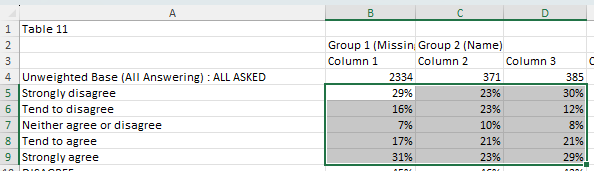
Download the slide and you should get the following result:
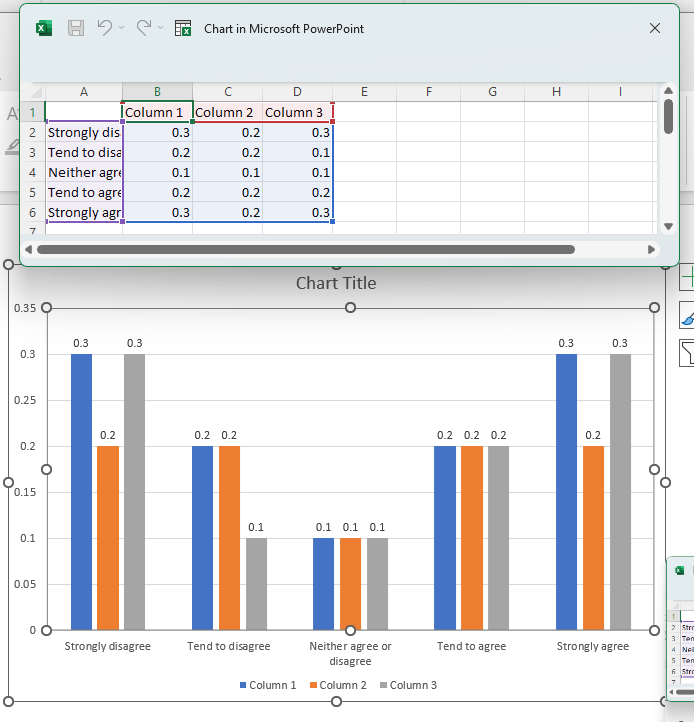
Normally, the decimal formatting from the data file will be converted to 2 decimal places by default. But since we have applied the ROUND transformation, all the values have been formatted to 1 decimal place.
INSERT_BLANK
Inserts arrays of a coherent shape with empty values (null) into the contextual data set.
Parameters:
| Name | Type | Description | Default |
|---|---|---|---|
index |
Index |
dictates where empty columns/rows shall be inserted. | required |
axis |
Axis |
apply row (0) or column (1) wise. | 0 |
Raises:
| Type | Description |
|---|---|
IndexError |
when index is not present in the dataframe. |
Usage
INSERT_BLANK([2, 4, 6], 0)
IB([2, 4, 6])
Remarks
Index values with step parameters might come especially handy here. For example, to insert a blank array after each column we can specify index=[1::1] (step over every 2nd starting after the first oneandaxis=1`.
Example
In the following example, we will be inserting a blank row on the 2nd, 4th and 6th row.
Map the following query to the input template:
SELECT (f=1, t=1, r=[5:11], c=[1:4]) -> INSERT_BLANK (index=[2, 4, 6], axis="rows") >> (2, 1)
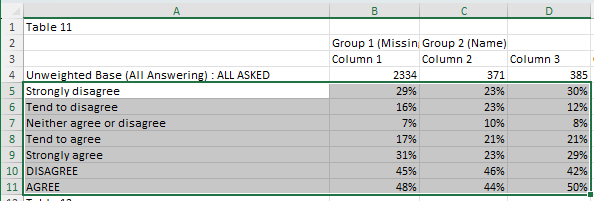
Download the slide and you should get the following result:
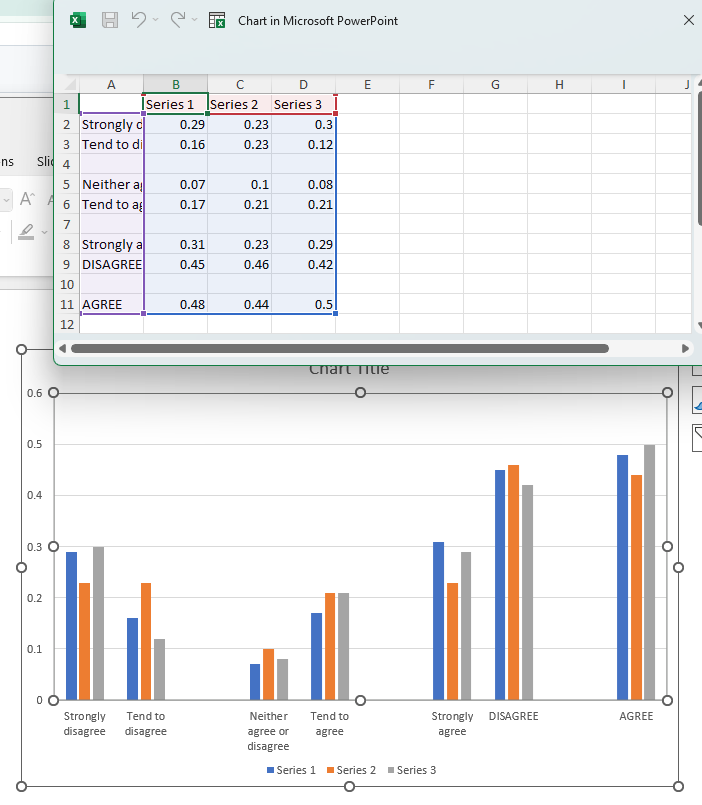
Here you can see that blank rows have been added after the 2nd, 4th and 6th rows from the original data selection.
This same result can be achieved by using a "step" index, specifying that a blank space should be inserted every two rows starting from the 2nd one and stopping at the 7th.
SELECT (f=1, t=1, r=[5:11], c=[1:4]) -> INSERT_BLANK (index=[2:7:2], axis="rows") >> (2, 1)
SIG_TEST
Picks up significance test results from the data source and renders them for the corresponding values.
Parameters:
| Name | Type | Description | Default |
|---|---|---|---|
base |
DataFrame |
comparison expression for base values | |
sig |
DataFrame |
comparison expression that determines significance of a value | required |
direction |
DataFrame |
comparison expression that determines significance sign (+/-) | required |
formatting |
tuple[str, str, str, str, str, int] |
See "Remarks" section |
Usage
SIG_TEST(
    sig=SELECT(...) in SELECT(...) | SELECT(...) in SELECT(...),
    direction=SELECT(...) in SELECT(...)
)
SIG_TEST(
    base=SELECT(...) > 100,
    sig=SELECT(...) in SELECT(...) | SELECT(...) in SELECT(...),
    direction=SELECT(...) in SELECT(...),
    formatting=["⬆", "green", "⬇", "red", "above", 13]
)
Remarks
The value of formatting argument defines visualisation of significance testing results. It must be an list of six values: positive symbol, positive color, negative symbol, negative color, symbol's position and symbol's font size. The default value is ["↑", "50,150,0", "↓", "200,0,0", "right", 13,]. The position argument must be one of these values: left, right, top, bottom
For more information, see the breakdown of how it works in the Recipies section.
Example
In the following example we'll be using signficance data in the below file to add significance arrows to the appropriate values.
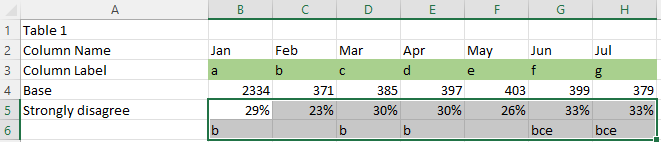
Here we'll be expecting an up arrow for the values at "Mar" and "Jun" and a down arrow at the value for "Feb", since they are significantly higher or signficantly lower than their previous columns.
Map the following query to the table on the first slide of the input template.
SELECT (f=1, t=1, r=["Strongly disagree"], c=["Jan"]) -> ROUND(2) >> (2, 2)
SELECT (f=1, t=1, r=["Strongly disagree"], c=["Feb":"Jul"]) -> SIG_TEST (
    base=SELECT (f=1, t=1, r=["Base"], c=["Feb":"Jul"]) > 100,
    sig=SELECT (f=1, t=1, r=["Column Label"], c=["Jan":"Jun"]) in SELECT (f=1, t=1, r=["Strongly disagree"(+1)], c=["Feb":"Jul"])
    |
    SELECT (f=1, t=1, r=["Column Label"], c=["Feb":"Jul"]) in SELECT (f=1, t=1, r=["Strongly disagree"(+1)], c=["Jan":"Jun"]),
    direction=SELECT (f=1, t=1, r=["Column Label"], c=["Jan":"Jun"]) in SELECT (f=1, t=1, r=["Strongly disagree"(+1)], c=["Feb":"Jul"]),
    formatting=["⬆", "green", "⬇", "red", "right", 18])
-> ROUND(2)
>> (2, 3)
Download the slide and you should get the following result:

Here we can see that significance arrows have been added to the values we expected:
- Feb received a down arrow because Jan has its significance letter (b), meaning that Feb is significantly lower
- Mar received an up arrow because it has Feb's significance letter (b), meaning that Mar is significantly higher
- Jun received an up arrow because it has May's significance letter (e), meaning that Jun is significantly higher
AUTO_SIG_TEST
Performs a significance test on a range of values from the ground up.
Parameters:
| Name | Type | Description | Default |
|---|---|---|---|
other |
DataFrame |
dataframe of comparative values. | required |
base |
DataFrame |
base values for the contextual dataframe. | required |
base_other |
DataFrame |
base values for the "other" dataframe. | required |
level |
Float |
confidence level of the significance test | 0.95 |
rows |
Index |
rows that need to be tested. | [:] |
columns |
Index |
columns that need to be tested. | [:] |
formatting |
tuple[str, str, str, str, str, int] |
See "Remarks" section |
Raises:
| Type | Description |
|---|---|
IndexError |
when rows/columns are not present in the dataframe. |
ValueError |
when the shape of the dataframe that is being tested doesn't match the shape of the "other" dataframe of comparative values. |
Usage
SELECT(f=1, t=1, r=[2:4], c=[2:]) -> AUTO_SIG_TEST(
    other=SELECT(1, 2, [2:4], [2:]),
    base=SELECT(1, 1, [5], [2:]),
    base_other=SELECT(1, 2, [5], [2:]),
    level=0.95,
    rows=[:],
    columns=[:],
    formatting=["+", "green", "-", "red", "top", 11])
) >> (1, 1)
Remarks
The value of formatting argument defines visualisation of significance testing results. It must be an list of six values: positive symbol, positive color, negative symbol, negative color, symbol's position and symbol's font size. The default value is ["↑", "50,150,0", "↓", "200,0,0", "right", 13,]. The position argument must be one of these values: left, right, top, bottom
Example
In the following example we will be comparing one table of data to another and having the plugin perform the sig test calculation itself.
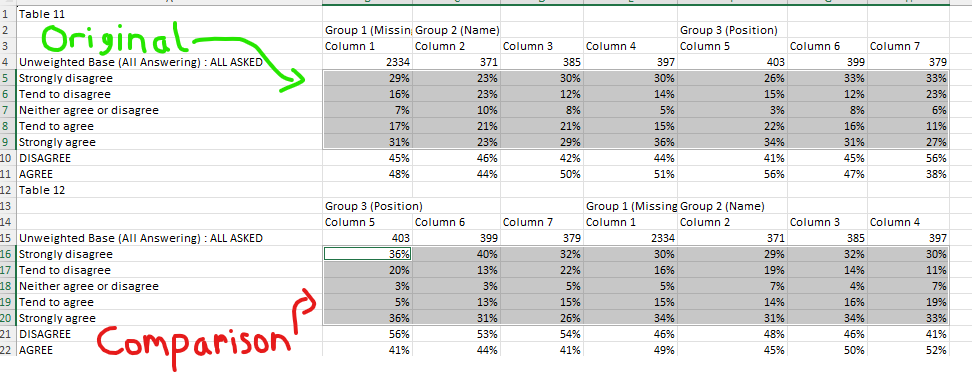
Map the following data to the input template:
SELECT (f=1, t=1, r=[5:9], c=[2:4]) -> AUTO_SIG_TEST (
other=SELECT (f=1, t=2, r=[5:9], c=[2:4]),
base=SELECT (f=1, t=1, r=[4], c=[2:4]),
base_other=SELECT (f=1, t=2, r=[4], c=[2:4]),
level=0.95,
formatting=["⬆", "green", "⬇", "red", "above", 13]
) >> (2, 2)
Download the slide and you should get the following result:
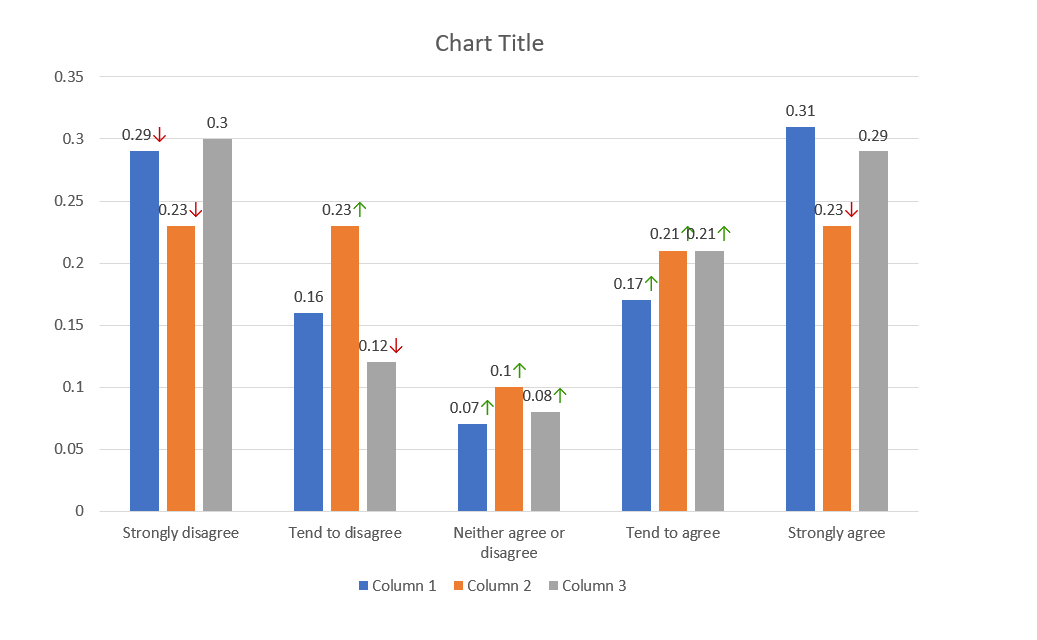
Here we can see values have been given an up or down arrow based on how much bigger or smaller they are than their respective values in the comparison data set.
REVERSE
Reverse the order of rows or columns in the dataset. Parameters:
| Name | Type | Description | Default |
|---|---|---|---|
axis |
Axis |
defines whether to reverse rows or columns | 0 |
Usage
SELECT(...) -> REVERSE("columns")
LOWER
Convert to lower case.
Raises:
| Type | Description |
|---|---|
TypeError |
when used on non-string values. |
Usage
LOWER()
L()
Example
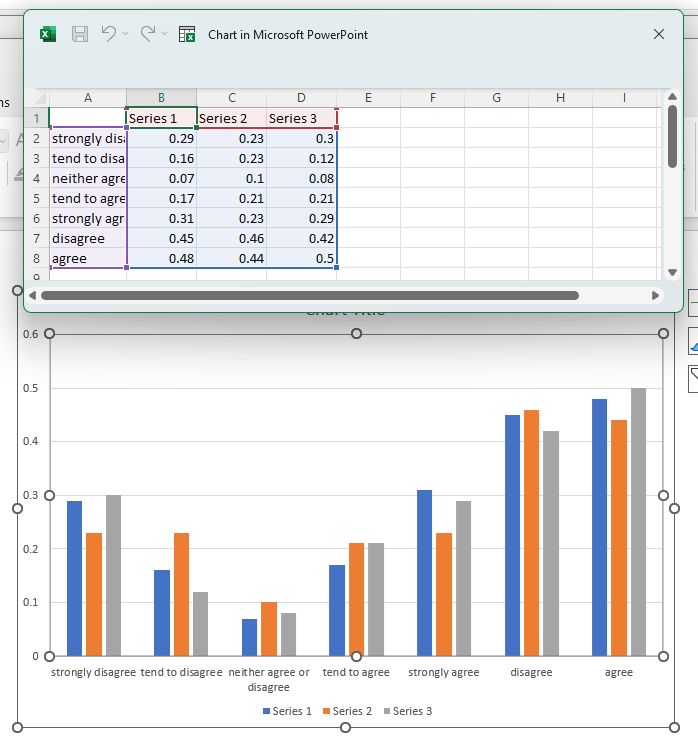
In the following example we will set all the row labels to lower case.
Map the following query to the template, which performs two selections: the first on the row labels to be transformed, and the second to grab the data.
SELECT (f=1, t=1, r=[5:11], c=[1]) -> LOWER() >> (2, 1)
SELECT (f=1, t=1, r=[5:11], c=[2:4]) >> (2, 2)
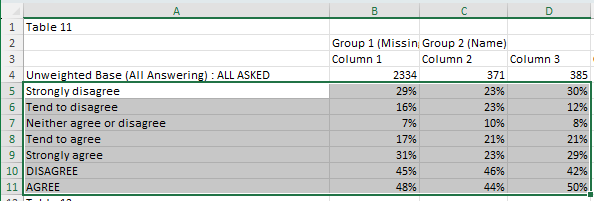
Download the slide and you should get the following result:
CONCAT
Concatenate multiple DataFrames and literals as strings.
Parameters:
| Name | Type | Description | Default |
|---|---|---|---|
data_sources
|
list
|
List of available data sources (unused but required by signature) |
required |
*args
|
DataFrames and/or literal values to concatenate |
()
|
|
**kwargs
|
Additional keyword arguments (currently unused) |
{}
|
Returns:
| Type | Description |
|---|---|
DataFrame
|
DataFrame with concatenated values |
Example
In the following example, we will combine two sets of three column labels together to make two long column labels.
Map the following query to the template, which performs two functions: the first combines the different column labels, and the second grabs the data.
CONCAT (
SELECT (f=1, t=1, r=[10, 11], c=[1]),
SELECT (f=1, t=1, r=[5, 8], c=[1]),
SELECT (f=1, t=1, r=[6, 9], c=[1])
) >> (2, 1)

SELECT (f=1, t=1, r=[10, 11], c=[2:4]) >> (2, 2)
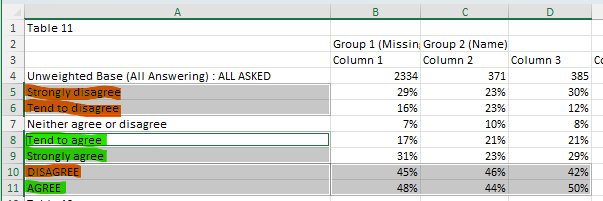
Download the slide and you should get the following result:
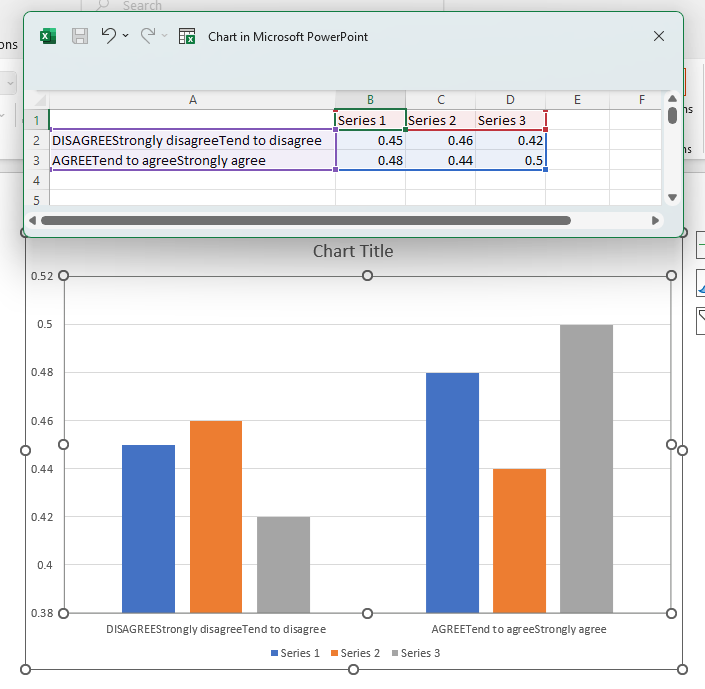
Here we can see that the selected row labels have been combined.
IIF
Conditionally select values based on boolean conditions (if-then-else logic).
Parameters:
| Name | Type | Description | Default |
|---|---|---|---|
data_sources
|
list
|
List of available data sources (unused but required by signature) |
required |
bool_frame
|
Boolean DataFrame or condition to evaluate |
required | |
a
|
Value/DataFrame to select when condition is True |
required | |
b
|
Value/DataFrame to select when condition is False (default: "") |
''
|
|
iterate
|
Whether to iterate over individual boolean values. If False, uses .any() on the boolean frame. Defaults to True |
None
|
Returns:
| Type | Description |
|---|---|
DataFrame
|
DataFrame with conditionally selected values |
Example
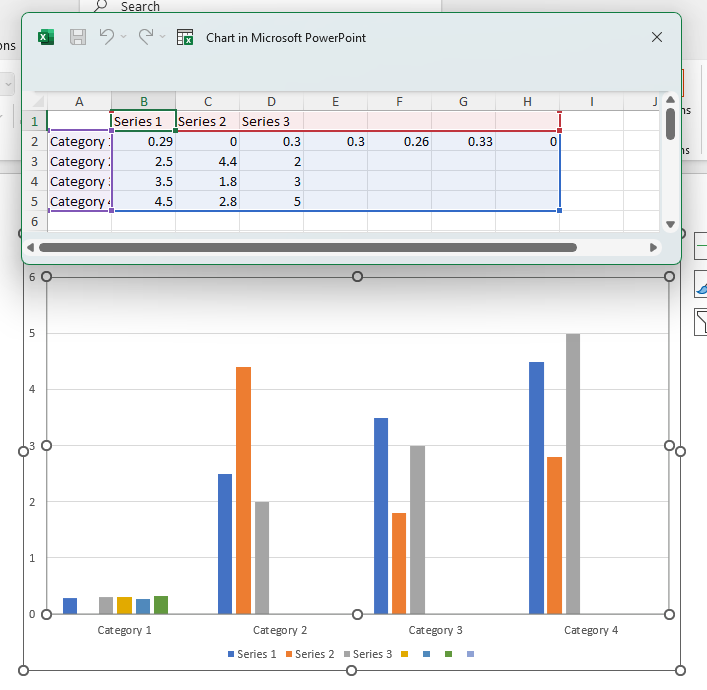
In the following example, we will apply a condition that will only retrieve a value from one row if the row above it contains a value greater than 380. If it's value is less than 380, 0 will be returned instead.
Map the following query to the template, which will apply the IFF condition to the selected data.
IIF (
SELECT (f=1, t=1, r=[4], c=[2:8]) > 380,
SELECT (f=1, t=1, r=[5], c=[2:8]),
0
) >> (2, 2)
Selected data from the file

Here we expect the values in column C and 7 to return 0, rather than their respective values in the second row, since their values in their first row do not meet the condition.
Download the slide and you should get the below result:
JOIN
Join a sequence of DataFrames along an axis.
Combines multiple DataFrames or lists by concatenating them along the specified axis. Handles significance testing results by preserving and merging sig settings.
Parameters:
| Name | Type | Description | Default |
|---|---|---|---|
data_sources
|
list
|
List of available data sources (unused but required by signature) |
required |
*args
|
DataFrames or lists to join |
()
|
|
**kwargs
|
Keyword arguments including: axis: Axis to join along (0 for rows, 1 for columns). Defaults to 0 |
{}
|
Returns:
| Type | Description |
|---|---|
DataFrame
|
DataFrame with joined data, including MultiIndex columns if any input has sig testing |
Usage
JOIN(
    SELECT(1, 2, [4:8], [2:5]),
    SELECT(1, 4, [5, 6], [2:5]),
    axis=0
)
Remarks
Normally, when joining DataFrames by row (column) axis, they should have the same amount of columns (rows). However, if they don't, it won't raise an error. Instead, the "missing" columns (rows) will be filled with null values.
Example
In the following example, we will combine two data sets from different tables and stack them on top of each other (by rows).
Map the following query to the input template, which grabs our two data sets from different tables and designates how they should be combined.
JOIN (
SELECT (f=1, t=1, r=[3, 5:9], c=[1:4]),
SELECT (f=1, t=2, r=[5:9], c=[1:4]),
axis="rows"
) >> (1, 1)
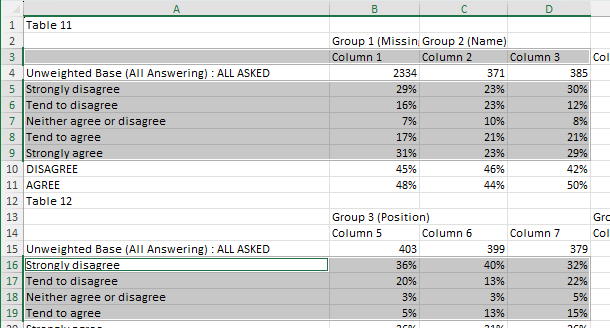
Download the slide and you should get the following result:
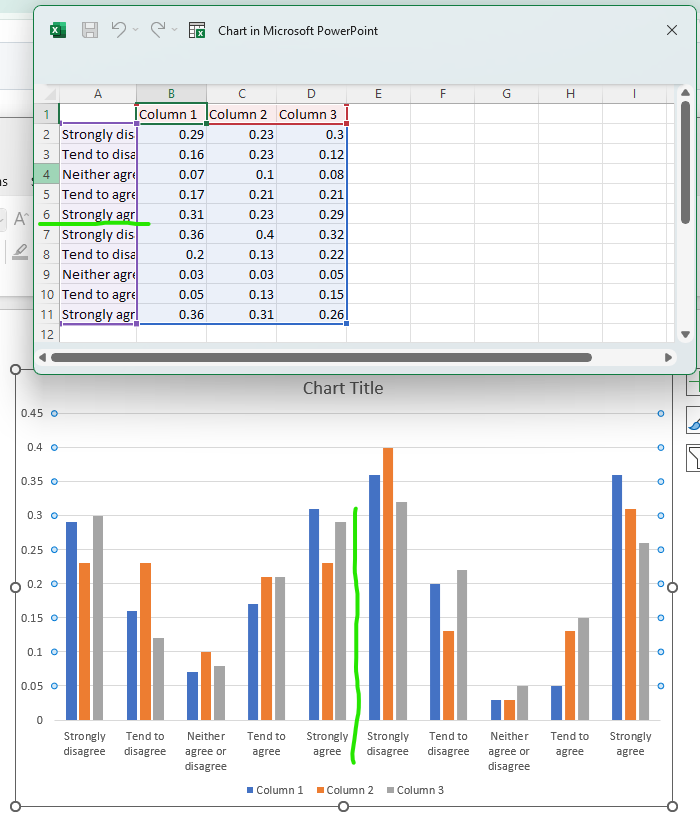
Here the divide between the two sets of data has been highlighted to demonstrate how they have been combined.
UPLOAD
Split data files to be read by the plugin.
Parameters:
| Name | Type | Description | Default |
|---|---|---|---|
name |
str |
name of the data source. | "main" |
pattern |
str |
a cell that matches this argument's value will identify the row by which the data source should be splitted into multiple tables. | "" |
column |
int |
the values of the specified column will be matched against the pattern. | 1 |
sheet |
int |
the sheets from the data source that should be used. | 1 |
name_loc |
tuple[int, int] |
coords of the cell containing the table name. | None |
offset |
int |
offsets rows matching the pattern when splitting tables. | 0 |
banner |
tuple[int, int] |
the start and end rows that comprise a banner. If specified, the banner will be prepended to each table in the sheet. If a banner is comprised of a single row, the start and end must have the same value, e.g. [1, 1]. |
None |
Example
In the following example, we'll be splitting a simple file into tables and identifying where each table name can be found.
In the "Connect data" table, click "Choose File" and upload the Training data file. Add the following query to the text field:
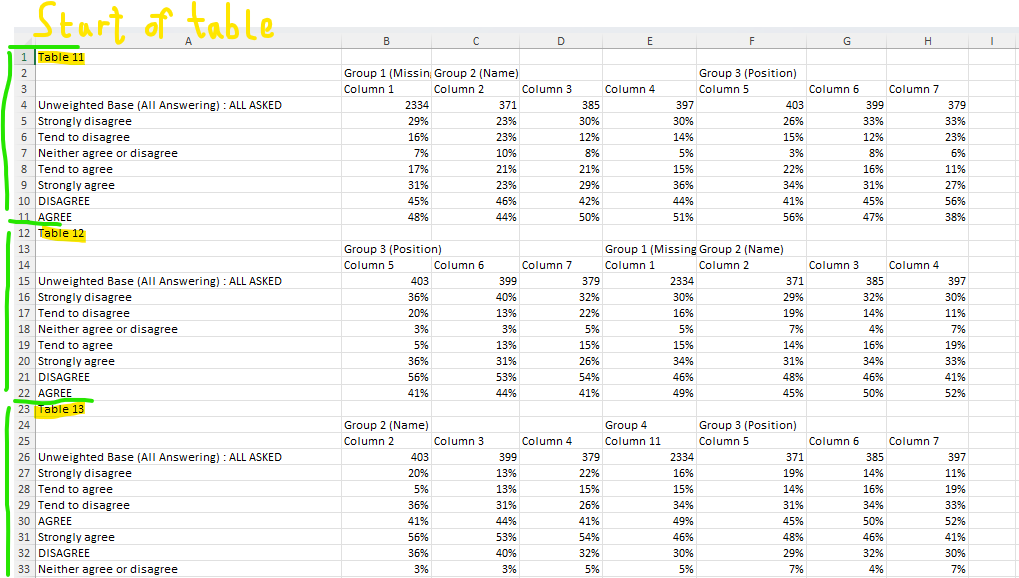
UPLOAD (name="training", pattern="Table\s\d+", column=1, sheet=[1,2], name_loc=[1, 1])
This UPLOAD query identifies where the start of each table is using its pattern argument. Using python regular expressions, it determines that the first table should start at Table 11, the second at Table 12, and so on. You can learn more about python regular expressions here. ChatGPT is also good at writing these.
It knows to look in the first column for these strings because of our column argument. We have specified sheet=[1, 2] for this query, which means we can use either of the first two sheets for our SELECT queries.
It will include the first and second sheets of the file in the upload. Both sheets will be split according to the other arguments.
Finally, we have indicated that the name of each table can be found in its first row and first column. Since Table 11, Table 12, etc. are identified as the first cell in each table, the plugin will treat these as the table names.